Zoiper phone setup (iOS, Android)
ZoiPer softphone is phone software for the Windows, MacOS, Linux, iOS and Android platforms. The app comes in both a free and a paid version.The free version has limited features (most notably, it lacks Auto-Answer).
You can find the ZoiPer product pages at zoiper.com.
Warning: Software phones are programs running on your computer. Their correct operation depends mainly on the state of the computer they run on. In particular, background operating system updates you are unaware of, or an aging operating system or computer, can cause the phone to fail during or after an update. That is why we recommend using CISCO hardware phones for working with the SEVIO CALL CENTER system.
Contents:
1. Installation
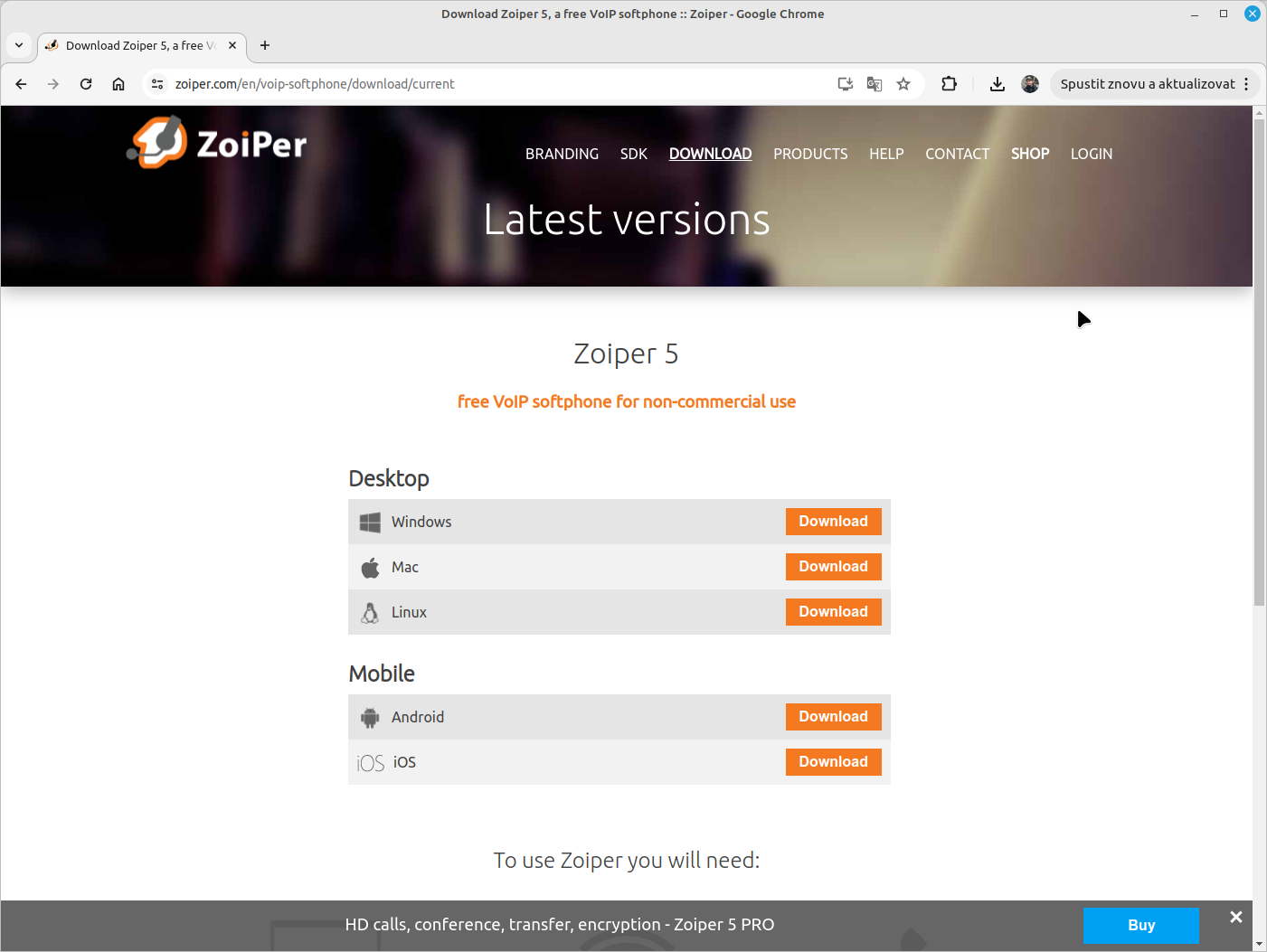
For desktop computers: install the phone from its product pages at zoiper.com.
For mobile phones: install the phone from the App Store (iOS) or Google Play (Android).
During installation, proceed in the standard way you are used to on your device. Follow the installation instructions.
2. Settings
Set up ZoiPer according to the following instructions.
Launch the ZoiPer app on your device.
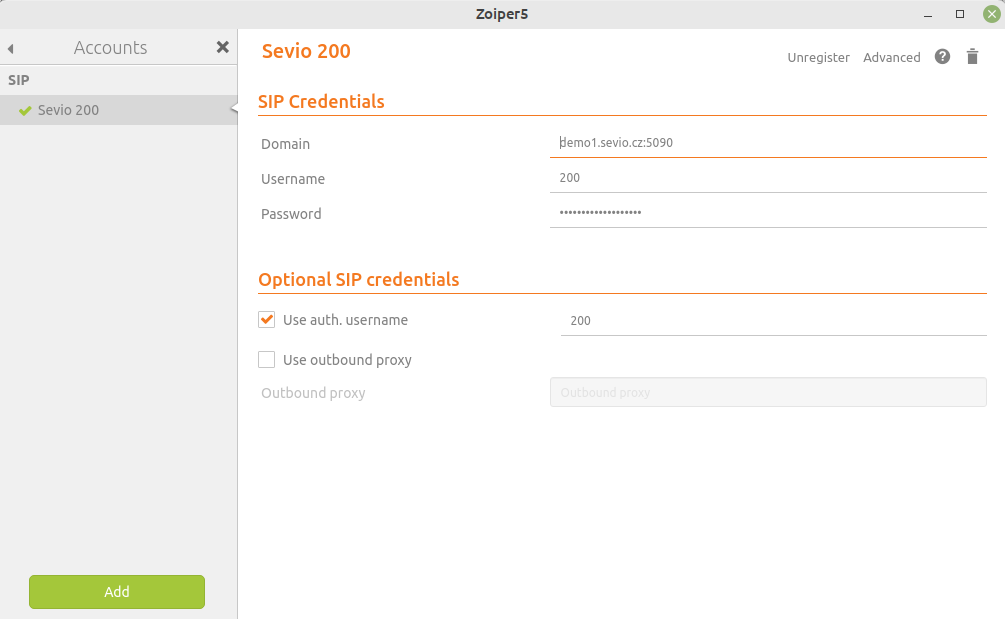
In the app menu, select Settings/Accounts.
Using the "Add" button, create a new account and name it "SEVIO".
"Domain": the IP address or name of the phone system, which you will find in your SEVIO phone system manual (e.g. "mojeustredna.sevio.cz:5090"). If a port is specified in the phone system name (e.g. 5090), write it after a colon following the name (no spaces).
"Username": the number of the extension you will be calling from (e.g. "208").
"Password": the extension password (see the phone system manual).
Tick the "Use auth. username" checkbox and enter the number of the extension you will be calling from (e.g. "208").
3. Troubleshooting
So far, no issues with running this phone have been reported to us. That does not mean there are none. We simply do not know about them.
We accept no responsibility for the correct operation of a software phone on any device.