MicroSIP phone setup
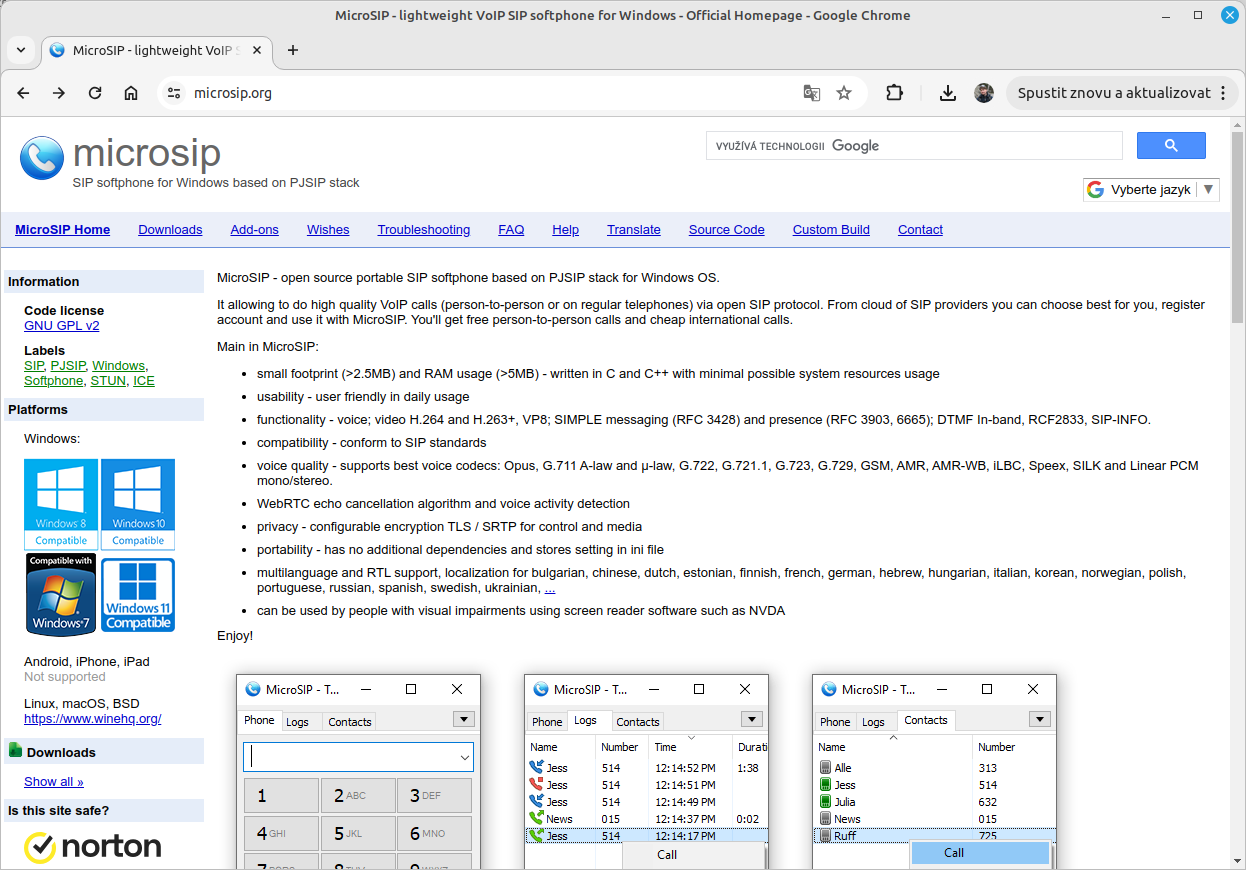
MicroSIP is an open source portable SIP softphone based on the PJSIP stack for the Windows OS. It lets you make high-quality VoIP calls (person to person or to regular phones) via the open SIP protocol.
You can find the MicroSIP product pages at microsip.org.
Warning: Software phones are programs running on your computer. Their correct operation depends mainly on the state of the computer they run on. In particular, background operating system updates you are unaware of, or an aging operating system or computer, can cause the phone to fail during or after an update. That is why we recommend using CISCO hardware phones for working with the SEVIO CALL CENTER system.
Contents:
1. Installation
Install the phone from its product pages at microsip.org.
Proceed in the standard way you are used to on Windows. Follow the installation instructions.
2. Basic settings
Set up MicroSIP according to the following instructions:
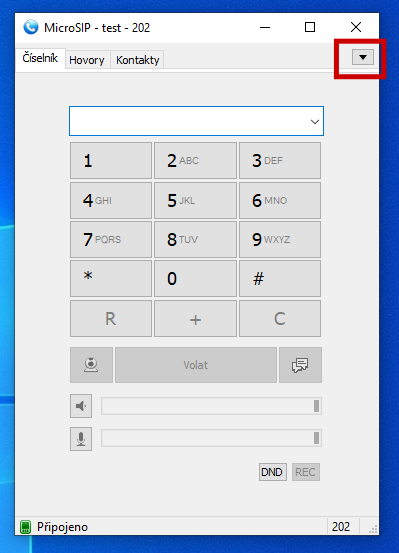
Launch the MicroSIP app on your computer.
In the top tab, click the icon that opens the phone settings.
From the menu, select "Add account".
3. Phone account settings
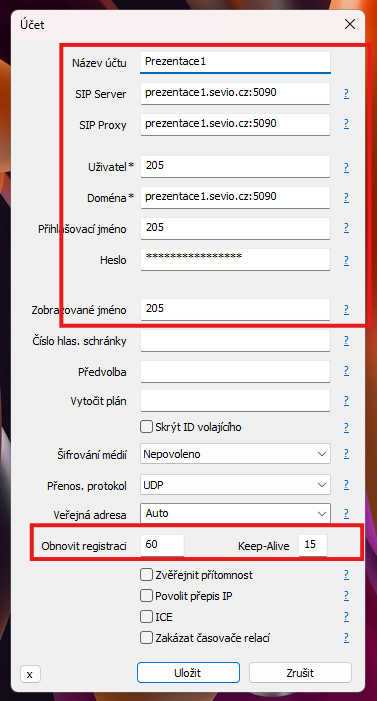
"Account name": the account name (enter "SEVIO").
"SIP server": the IP address or name of the phone system, which you will find in your SEVIO phone system manual (e.g. "mojeustredna.sevio.cz:5090"). If a port is specified in the phone system name (e.g. 5090), write it after a colon following the name (no spaces).
"SIP proxy": the same as "SIP server".
"User": the number of the extension you will be calling from (e.g. "202").
"Domain": the same as "SIP server".
"Login": the number of the extension you will be calling from (e.g. "202").
"Password": the extension password (see the phone system manual).
"Display name": the number of the extension you will be calling from (e.g. "202").
"Registration refresh": should contain the value "30"
"Keep-Alive": should contain the value "15"
Tick the "Publish presence" checkbox and save the settings.
4. Troubleshooting
With MicroSIP, you may run into problems logging in to the phone system (the phone is not visible in the system) or a silent line (they cannot hear you, you cannot hear them, or both). This usually happens during or after a Windows operating system update. The remedy in this case is to reinstall MicroSIP (uninstall the phone from the computer, delete all configuration files the phone created, install the phone again and set it up from scratch).
As a diagnostic, you can use a simple test: call a colleague at your workplace on their working MicroSIP phone from this phone. If you cannot hear each other, the problem in your computer persists.
If calling from one phone to another within the phone system does not work, calling out of the system to mobile phones will not work either. You must first fix this problem on the computer where the phone is installed.
From experience: MicroSIP is used on Windows 10. On Windows 11, MicroSIP may or may not work reliably.
We accept no responsibility for the correct operation of a software phone on any device.